


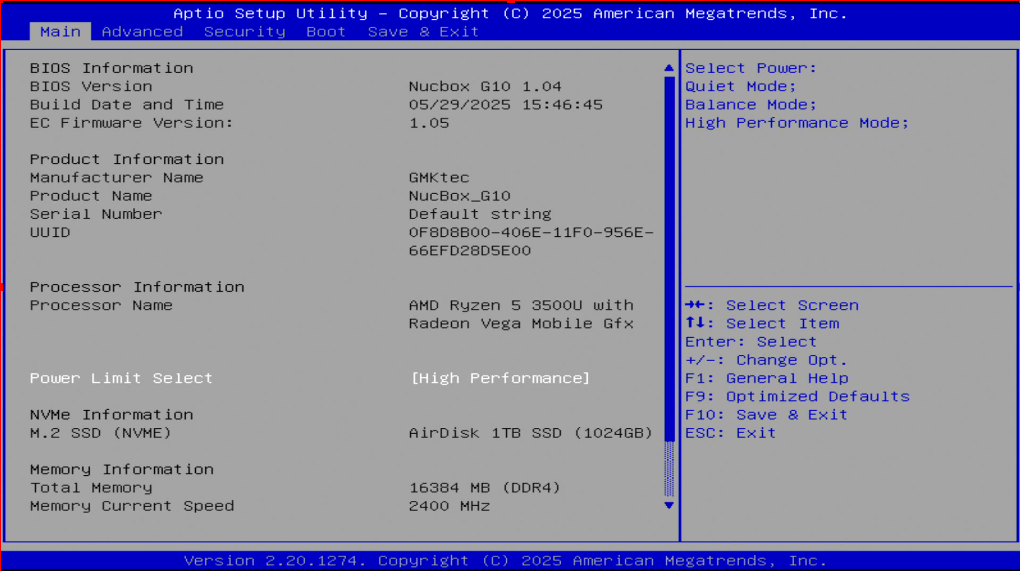
- Press the ESC key continuously to enter the BIOS setup page when booting. As shown below:
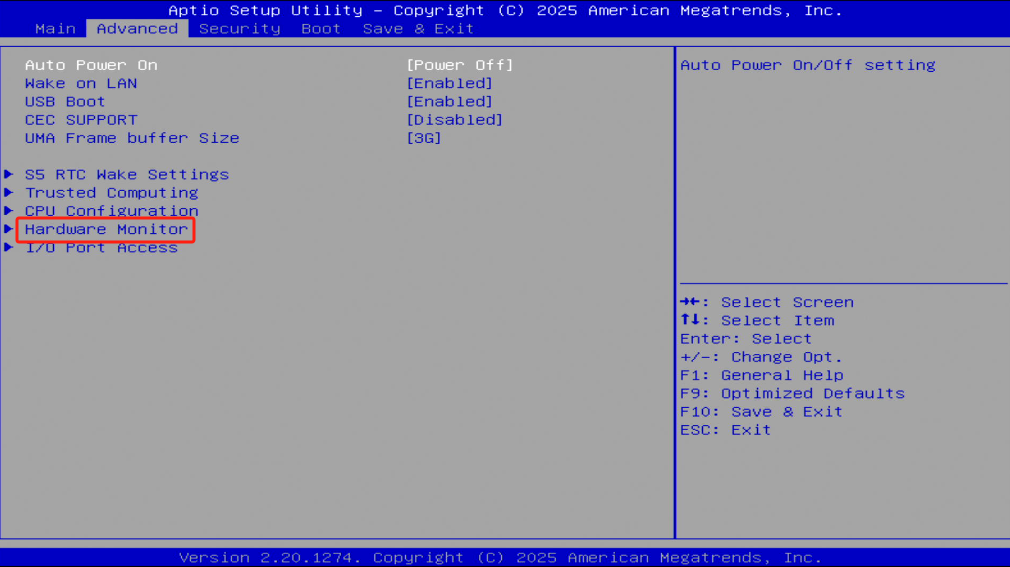
- Use the arrow key "→" on the keyboard to select the Advanced menu bar interface, and then use the arrow key "↓" on the keyboard to select the Hardware Monitor menu item. As shown below:
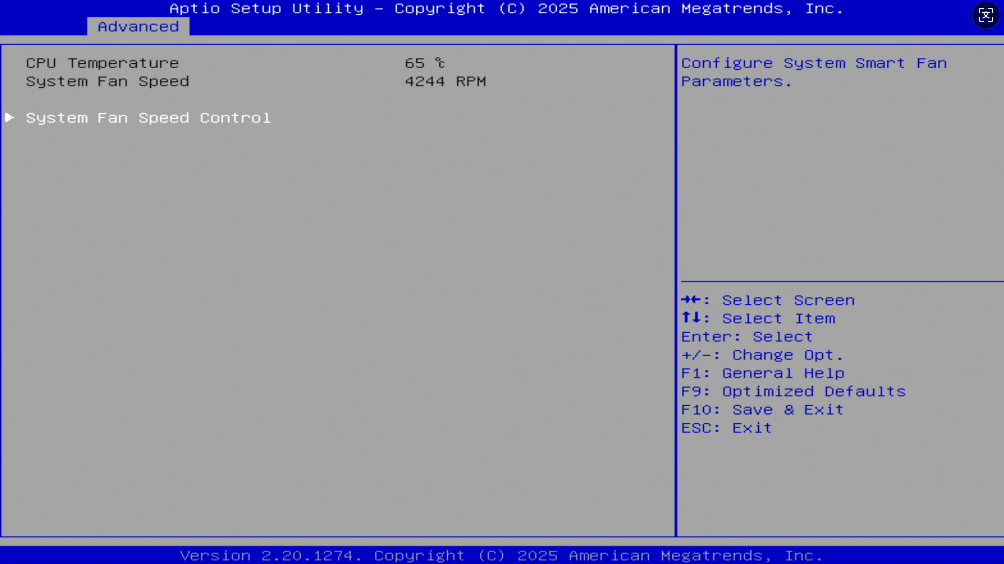
- After selecting the Hardware Monitor menu item, press "Enter" to enter the Smart Fan menu interface, as shown below:
- Select the Smart Fan [Disabled] menu item and press Enter, use the arrow key "↓" on the keyboard to select [Disabled/Enabled] and then press "Enter" as shown below:
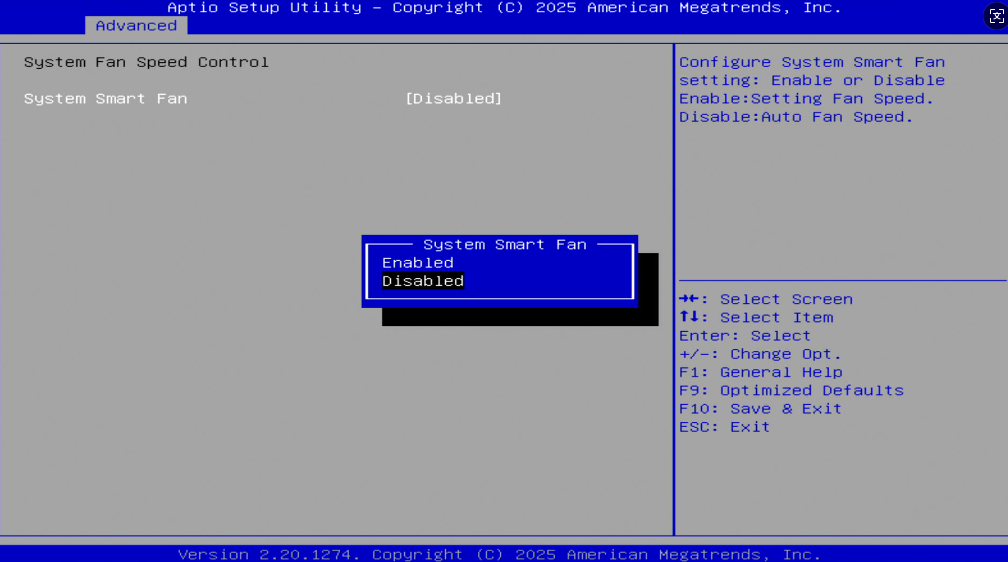
Description: ** Disabled: Smart Fan Disabled
Enabled: Smart Fan Enabled
- After selecting the PWM Control FanSpeed menu item, the user can use the arrow key "↓" on the keyboard to switch the fan speed value. After changing, press F10 to enter and save and exit.
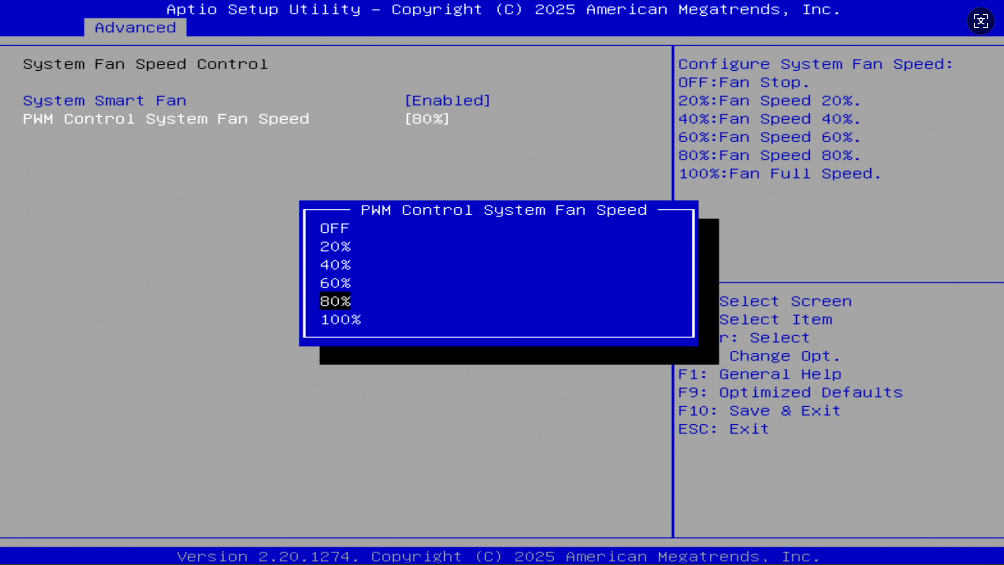
Note: OFF means turning off the fan, 20%--100% means the fan speed. You can change the fan speed according to your needs. After changing, press F10 to save and exit.
Completed


1 Comment
Very interesting, I bought a GMKtec G10 and felt the fan did not speed up enough to prevent thermal throttling at times. I imagine the default setting was to minimize fan noise. Trouble is, the smaller the fan the higher the RPM’s needed to move any significant air flow. Especially in such a small PC case as the G10. I really thought the AMD 3500u at 15 watt would have been more efficient than it is. If you don’t reduce that heat the entire unit faces other failures such as the SSD or RAM. Personally I do not think it’s a good design and I am surprised more do not complain about the thermals.